
Process invoice batches with review before export
Group invoice uploads under the selected client company. Follow individual document results, resolve failures and compare extracted fields with each source before choosing an accounting export.
Upload → Review → Export
- Choose the client company, create or select a batch, and add supported invoice files.
- Follow processing status for each document; review completed results and inspect failed-document errors.
- Correct and approve the intended invoices, then choose reviewed records and the required export format.
Supported inputs and outputs
Upload invoice PDF, JPG or PNG files, up to 15 MB per file in the current upload flow. Monthly allowances or trial credits still apply. A selected file can contain more than one invoice; confirm page grouping and results before export.
A reviewable accounting workflow
- Keep uploaded, processing, review-pending and failed results distinguishable.
- Retry an eligible failed document after addressing its error; a retry can still fail.
- Filter the export by company, batch and reviewed records, then confirm the downloaded row count and amounts.
Cloud processing uses an internet connection. The Windows Tally Connector connects the Cloud workflow to a local Tally installation.
See the complete Cloud workflowFollow each document through the batch
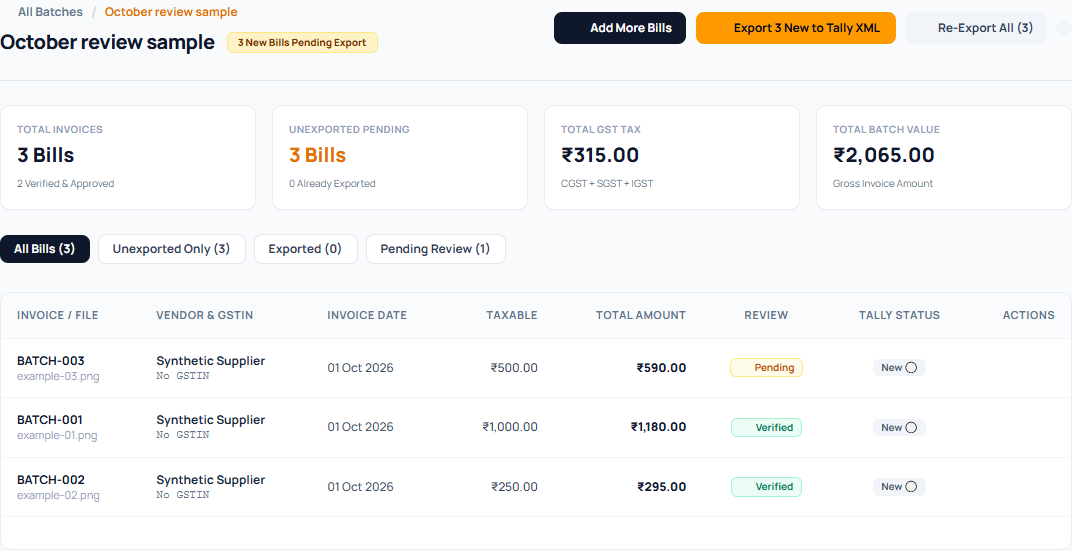
Synthetic teaching example for Example Client Alpha. Three separate image files represent three invoices. Initially two results need review and one document has failed; the batch finishing processing does not mean every invoice is approved.
| File / invoice | Result | Taxable | CGST | SGST | Total |
|---|---|---|---|---|---|
| example-01.pngBATCH-001 | Review pending | 1,000.00 | 90.00 | 90.00 | 1,180.00 |
| example-02.pngBATCH-002 | Review pending | 250.00 | 22.50 | 22.50 | 295.00 |
| example-03.pngBATCH-003 | Failed → retry → review pending | 500.00 | 45.00 | 45.00 | 590.00 |
After all three results have been checked and approved, the example reviewed export contains 3 invoices: 1,180.00 + 295.00 + 590.00 = 2,065.00. These figures illustrate a workflow, not an OCR accuracy or processing-speed claim.
Handle a failed document
Read the exact error first. Check file format, readability and account limits. Retry when appropriate, or replace an unusable source. A retry may still fail; compare any new extraction with its original.
Check PDF grouping before export
Page splitting depends on the upload path and server tools. Keep continuation pages with their invoice. Confirm the extracted invoice count instead of assuming one file or page always means one invoice.
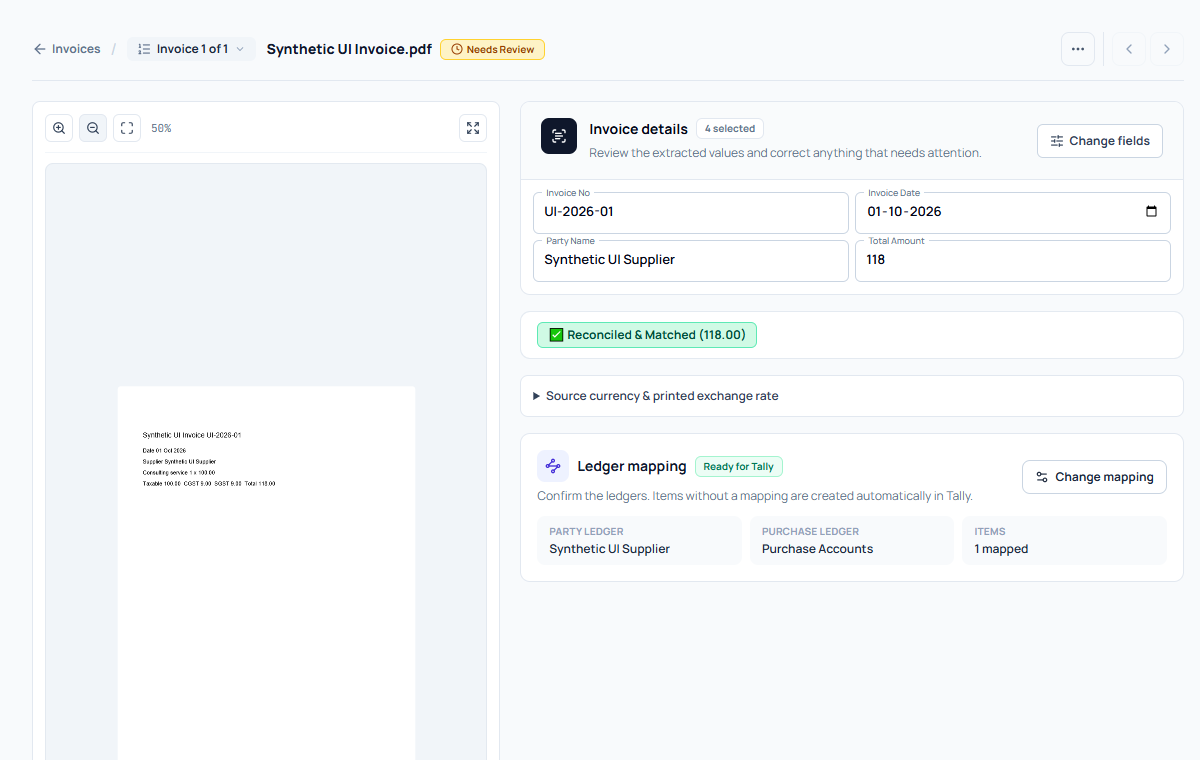
Select the intended company, batch and reviewed records in the export workflow. A downloaded XML file does not confirm that vouchers exist in Tally. Follow the Tally import and voucher checks after transfer.
Request a batch-workflow demoCheck company, document and team limits
These limits use the same current Cloud catalogue as the pricing page. Your workspace’s active plan and remaining allowance determine access. Team seats include the owner.
| Cloud plan | Documents | Client companies | Team seats |
|---|---|---|---|
| Starter | 30 trial documents | 1 | 1 seat |
| Pro Accountant | 300 per month | 10 | 1 seat |
| CA Firm Pro | 1,500 per month | 100 | 3 seats |
Trial validity and remaining credits apply. Compare Cloud plans and trial terms. Discuss the standalone Windows edition separately.
Frequently asked questions
How many invoices can I process in a batch?
Your document allowance or remaining trial credits, individual file size and layout determine what can be processed. The current invoice upload accepts PDF, JPG and PNG up to 15 MB per file. No fixed invoices-per-minute or unlimited-batch guarantee is made.
Does a completed batch mean every invoice is reviewed?
No. Processing can finish with failed documents, and extracted results can still need review. Inspect each document, confirm invoice counts and amounts, and use the reviewed-record filter before export.
Are multi-page PDFs always split into separate invoices?
Do not assume one page equals one invoice. The upload flow can offer page splitting when supported by the server; otherwise it can retain the original PDF. Check that continuation pages stay with their invoice and compare the extracted invoice count.
What happens when one document fails?
Read its error, correct the source or configuration where needed, and use the available retry action. A failed source may need replacement or a layout-support enquiry. Review the new result after retry rather than assuming the failure was resolved.
Does downloading Tally XML confirm an import?
No. A file download records file preparation. Import the reviewed XML into the intended Tally company, then check actual vouchers, ledger entries and amounts. The Cloud Connector is a separate transfer path.